#  Helm Dashboard
A simplified way of working with Helm.
[
Helm Dashboard
A simplified way of working with Helm.
[ ](screenshot.png)
## What it Does?
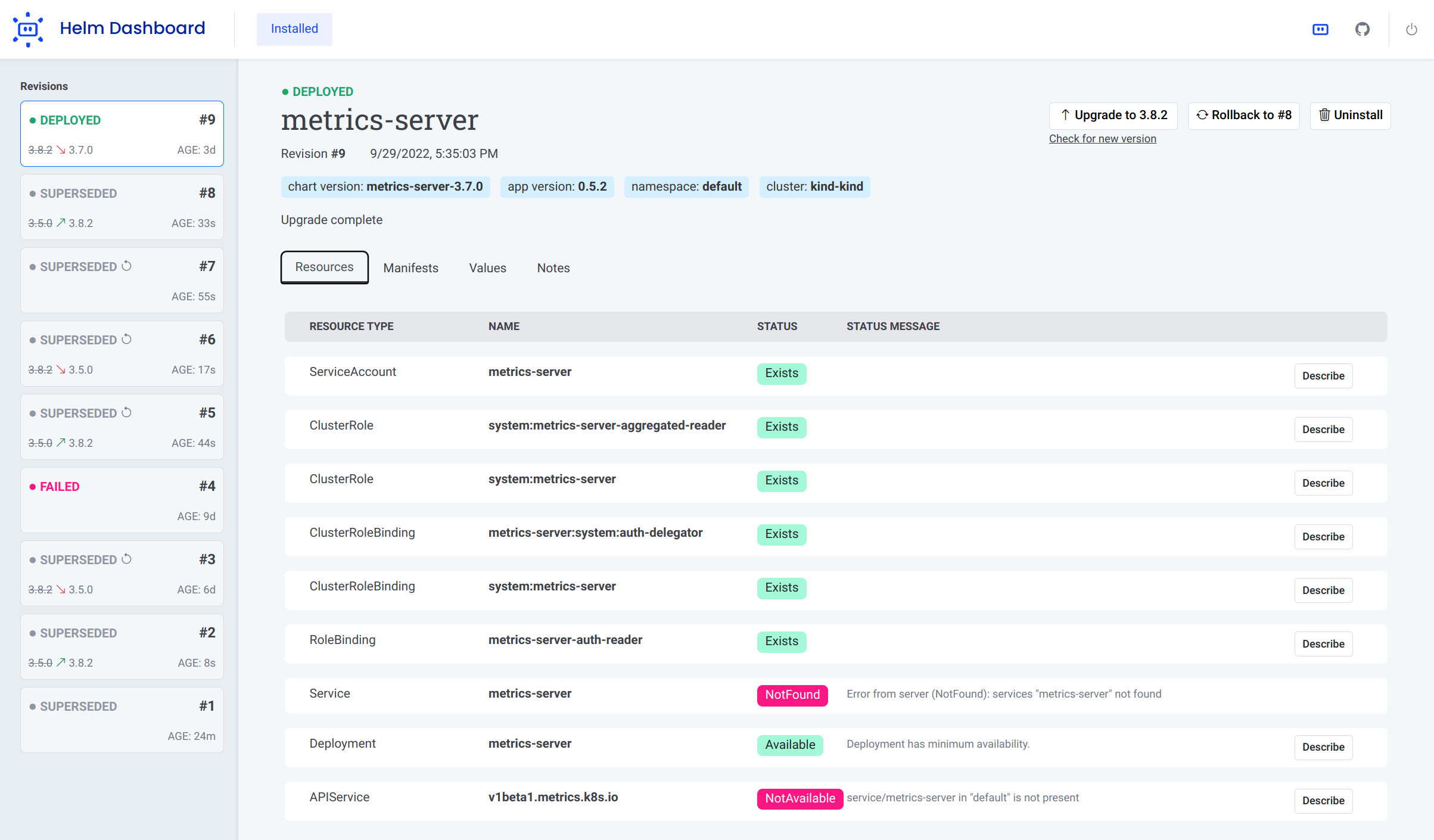
The _Helm Dashboard_ plugin offers a UI-driven way to view the installed Helm charts, see their revision history and
corresponding k8s resources. Also, you can perform simple actions like roll back to a revision or upgrade to newer
version.
This project is part of [Komodor's](https://komodor.com/?utm_campaign=Helm-Dash&utm_source=helm-dash-gh) vision of
helping Kubernetes users to navigate and troubleshoot their clusters.
Some of the key capabilities of the tool:
- See all installed charts and their revision history
- See manifest diff of the past revisions
- Browse k8s resources resulting from the chart
- Easy rollback or upgrade version with a clear and easy manifest diff
- Integration with popular problem scanners
- Easy switch between multiple clusters
## Installing
To install it, simply run Helm command:
```shell
helm plugin install https://github.com/komodorio/helm-dashboard.git
```
To update the plugin to the latest version, run:
```shell
helm plugin update dashboard
```
To uninstall, run:
```shell
helm plugin uninstall dashboard
```
Note: In case standard Helm plugin way did not work for you, you can just download the appropriate [release package](https://github.com/komodorio/helm-dashboard/releases) for your platform, unpack it and just run `dashboard` binary from it.
## Running
To use the plugin, your machine needs to have working `helm` and also `kubectl` commands. Helm version 3.4.0+ is required.
After installing, start the UI by running:
```shell
helm dashboard
```
The command above will launch the local Web server and will open the UI in new browser tab. The command will hang
waiting for you to terminate it in command-line or web UI.
By default, the web server is only available locally. You can change that by specifying `HD_BIND` environment variable
to the desired value. For example, `0.0.0.0` would bind to all IPv4 addresses or `[::0]` would be all IPv6 addresses.
If your port 8080 is busy, you can specify a different port to use via `HD_PORT` environment variable.
If you don't want browser tab to automatically open, set `HD_NOBROWSER=1` in your environment variables.
If you want to increase the logging verbosity and see all the debug info, set `DEBUG=1` environment variable.
## Scanner Integrations
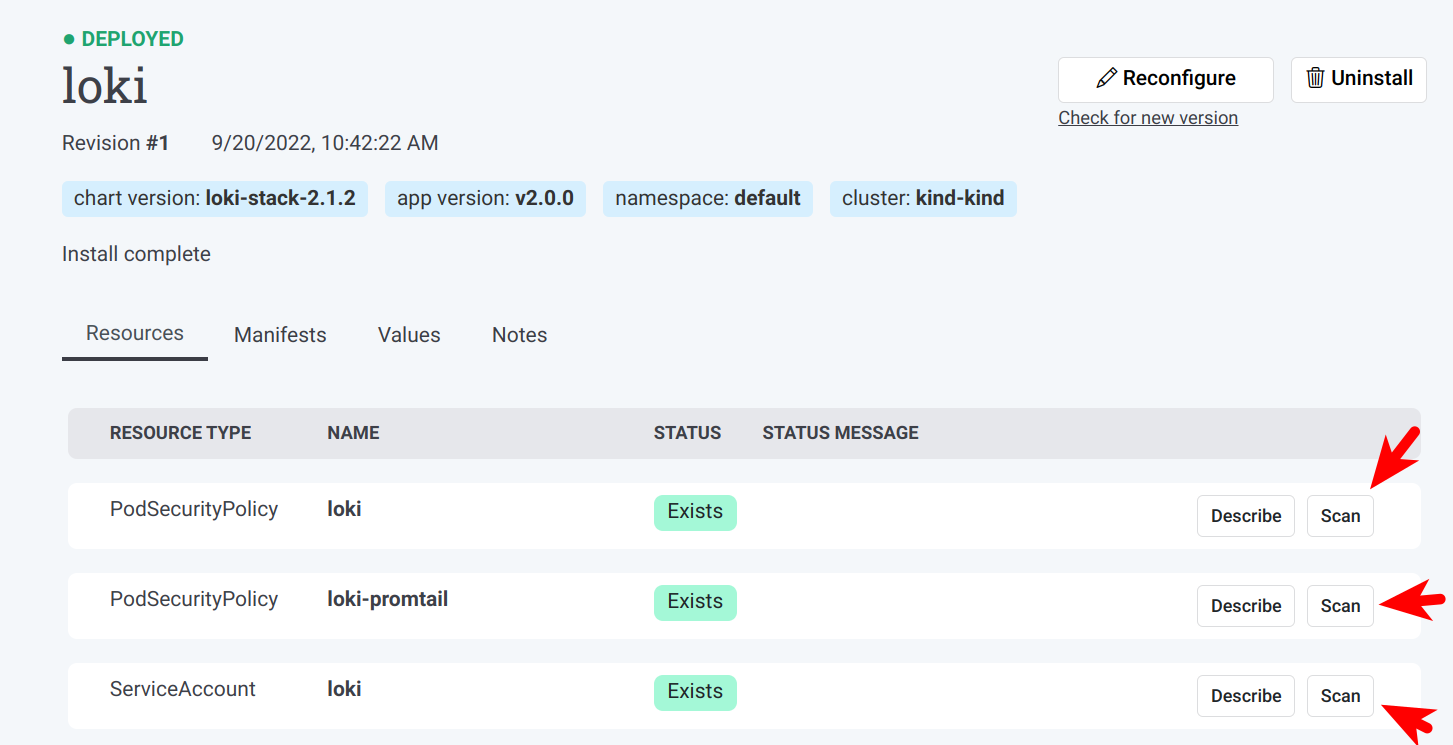
Upon startup, Helm Dashboard detects the presence of [Trivy](https://github.com/aquasecurity/trivy)
and [Checkov](https://github.com/bridgecrewio/checkov) scanners. When available, these scanners are offered on k8s
resources page, as well as install/upgrade preview page.
You can request scanning of the specific k8s resource in your cluster:
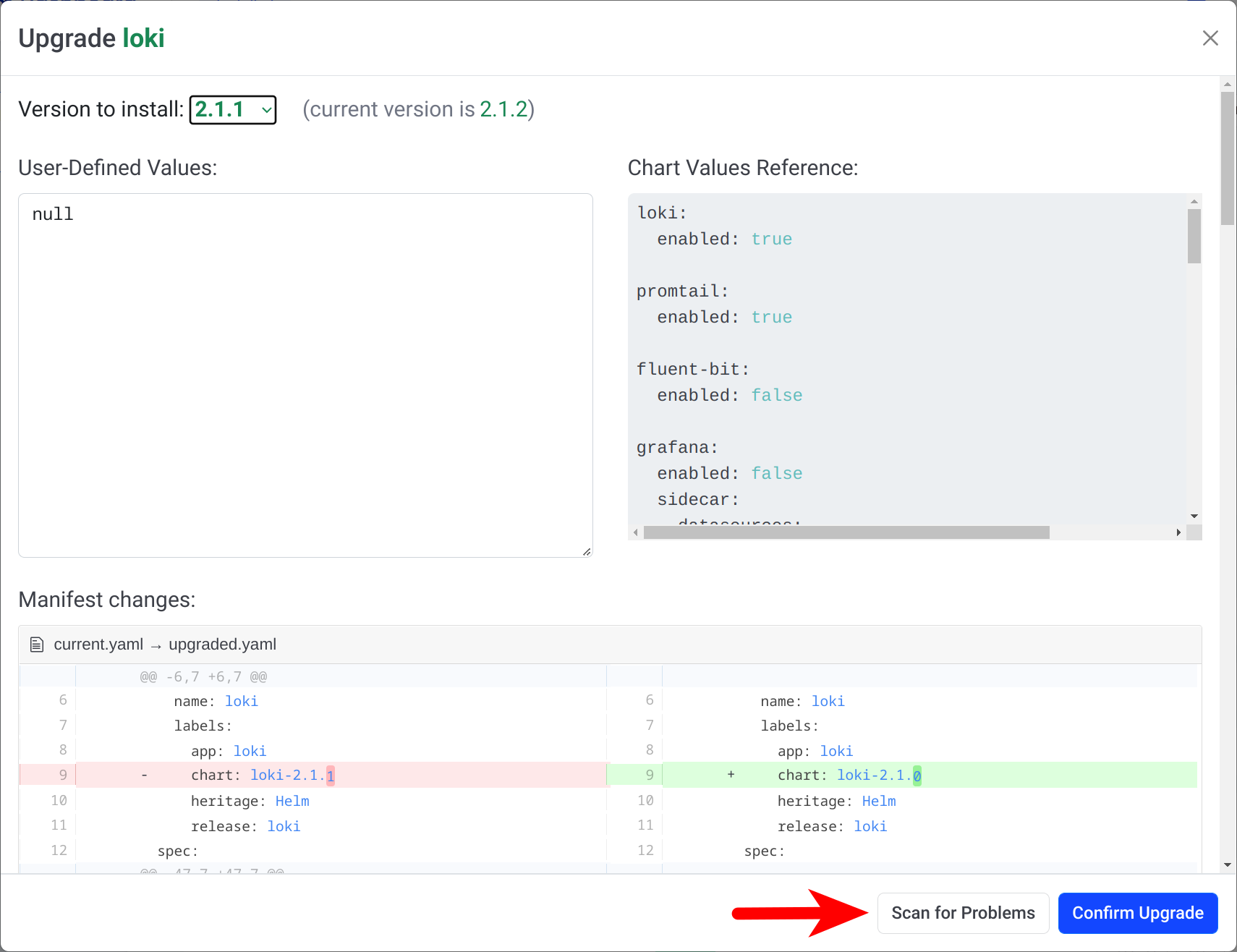
If you want to validate the k8s manifest prior to installing/reconfiguring a Helm chart, look for "Scan for Problems"
button at the bottom of the dialog:
## Support Channels
We have two main channels for supporting the Helm Dashboard
users: [Slack community](https://komodorkommunity.slack.com/archives/C044U1B0265) for general conversations
and [GitHub issues](https://github.com/komodorio/helm-dashboard/issues) for real bugs.
## Local Dev Testing
Prerequisites: `helm` and `kubectl` binaries installed and operational.
There is a need to build binary for plugin to function, run:
```shell
go build -o bin/dashboard .
```
You can just run the `bin/dashboard` binary directly, it will just work.
To install, checkout the source code and run from source dir:
```shell
helm plugin install .
```
Local installation of plugin just creates a symlink, so making the changes and rebuilding the binary would not require
to
reinstall a plugin.
To use the plugin, run in your terminal:
```shell
helm dashboard
```
Then, use the web UI.
](screenshot.png)
## What it Does?
The _Helm Dashboard_ plugin offers a UI-driven way to view the installed Helm charts, see their revision history and
corresponding k8s resources. Also, you can perform simple actions like roll back to a revision or upgrade to newer
version.
This project is part of [Komodor's](https://komodor.com/?utm_campaign=Helm-Dash&utm_source=helm-dash-gh) vision of
helping Kubernetes users to navigate and troubleshoot their clusters.
Some of the key capabilities of the tool:
- See all installed charts and their revision history
- See manifest diff of the past revisions
- Browse k8s resources resulting from the chart
- Easy rollback or upgrade version with a clear and easy manifest diff
- Integration with popular problem scanners
- Easy switch between multiple clusters
## Installing
To install it, simply run Helm command:
```shell
helm plugin install https://github.com/komodorio/helm-dashboard.git
```
To update the plugin to the latest version, run:
```shell
helm plugin update dashboard
```
To uninstall, run:
```shell
helm plugin uninstall dashboard
```
Note: In case standard Helm plugin way did not work for you, you can just download the appropriate [release package](https://github.com/komodorio/helm-dashboard/releases) for your platform, unpack it and just run `dashboard` binary from it.
## Running
To use the plugin, your machine needs to have working `helm` and also `kubectl` commands. Helm version 3.4.0+ is required.
After installing, start the UI by running:
```shell
helm dashboard
```
The command above will launch the local Web server and will open the UI in new browser tab. The command will hang
waiting for you to terminate it in command-line or web UI.
By default, the web server is only available locally. You can change that by specifying `HD_BIND` environment variable
to the desired value. For example, `0.0.0.0` would bind to all IPv4 addresses or `[::0]` would be all IPv6 addresses.
If your port 8080 is busy, you can specify a different port to use via `HD_PORT` environment variable.
If you don't want browser tab to automatically open, set `HD_NOBROWSER=1` in your environment variables.
If you want to increase the logging verbosity and see all the debug info, set `DEBUG=1` environment variable.
## Scanner Integrations
Upon startup, Helm Dashboard detects the presence of [Trivy](https://github.com/aquasecurity/trivy)
and [Checkov](https://github.com/bridgecrewio/checkov) scanners. When available, these scanners are offered on k8s
resources page, as well as install/upgrade preview page.
You can request scanning of the specific k8s resource in your cluster:

If you want to validate the k8s manifest prior to installing/reconfiguring a Helm chart, look for "Scan for Problems"
button at the bottom of the dialog:

## Support Channels
We have two main channels for supporting the Helm Dashboard
users: [Slack community](https://komodorkommunity.slack.com/archives/C044U1B0265) for general conversations
and [GitHub issues](https://github.com/komodorio/helm-dashboard/issues) for real bugs.
## Local Dev Testing
Prerequisites: `helm` and `kubectl` binaries installed and operational.
There is a need to build binary for plugin to function, run:
```shell
go build -o bin/dashboard .
```
You can just run the `bin/dashboard` binary directly, it will just work.
To install, checkout the source code and run from source dir:
```shell
helm plugin install .
```
Local installation of plugin just creates a symlink, so making the changes and rebuilding the binary would not require
to
reinstall a plugin.
To use the plugin, run in your terminal:
```shell
helm dashboard
```
Then, use the web UI.